Withdrawals
How to withdraw wBarrel and DOGE to your own wallet. Fees, limits, the frozen balance, two-factor codes, review, statuses and cancelling.
On this page
A withdrawal sends wBarrel (🛢️) or DOGE from your game balance to your own crypto wallet. Every request is reviewed by an operator before it is paid. This page explains how to request it, what it costs, and what happens next. DOGE is withdrawn on the same page: see Withdrawing DOGE.
Before you start
- Withdrawals must be switched on. The operators decide this. When they are on, Profile shows a Withdraw button next to Deposit. When they are off, there is no button.
- Two-factor protection is recommended, not required. When it is on, every withdrawal is confirmed with a six-digit code from an authenticator app. When it is off, no code is asked, and the withdrawal screen suggests turning it on: tap Turn on there, or open Security in Profile. See Security.
- Your account must be active.
- Not on weekends. From Saturday 00:00 UTC to Monday 00:00 UTC no new request is accepted. Requests made before stay in line and are paid as usual. See Weekends.
- Only to your own wallet. wBarrel cannot be sent to other players.
Where you withdraw
Depending on the game's setting, you request a withdrawal in the Mini App, in the bot, or in either of them.
- In the Mini App: Profile → Withdraw.
- In the bot: send /withdraw, or tap "📤 Withdraw" in the bot's menu.
If the app shows "Withdrawals are made in our bot", tap Withdraw in the bot and continue in the bot. If the bot says that withdrawals are requested in the app, use its "Open Withdraw" button. Your requests are listed in the app, and a pending request can be cancelled only in the app.
The request
In the Mini App:
- Choose a network. A network that is switched off is marked "Temporarily unavailable".
- Choose an asset. An asset without a current price is marked "Price unavailable" and cannot be chosen.
- Enter the amount in 🛢️ and your wallet address. The app shows the fee and what you receive.
- Tap Review and check every line.
- If two-factor protection is on, enter the code from your authenticator app (or a recovery code). Tap Request withdrawal.
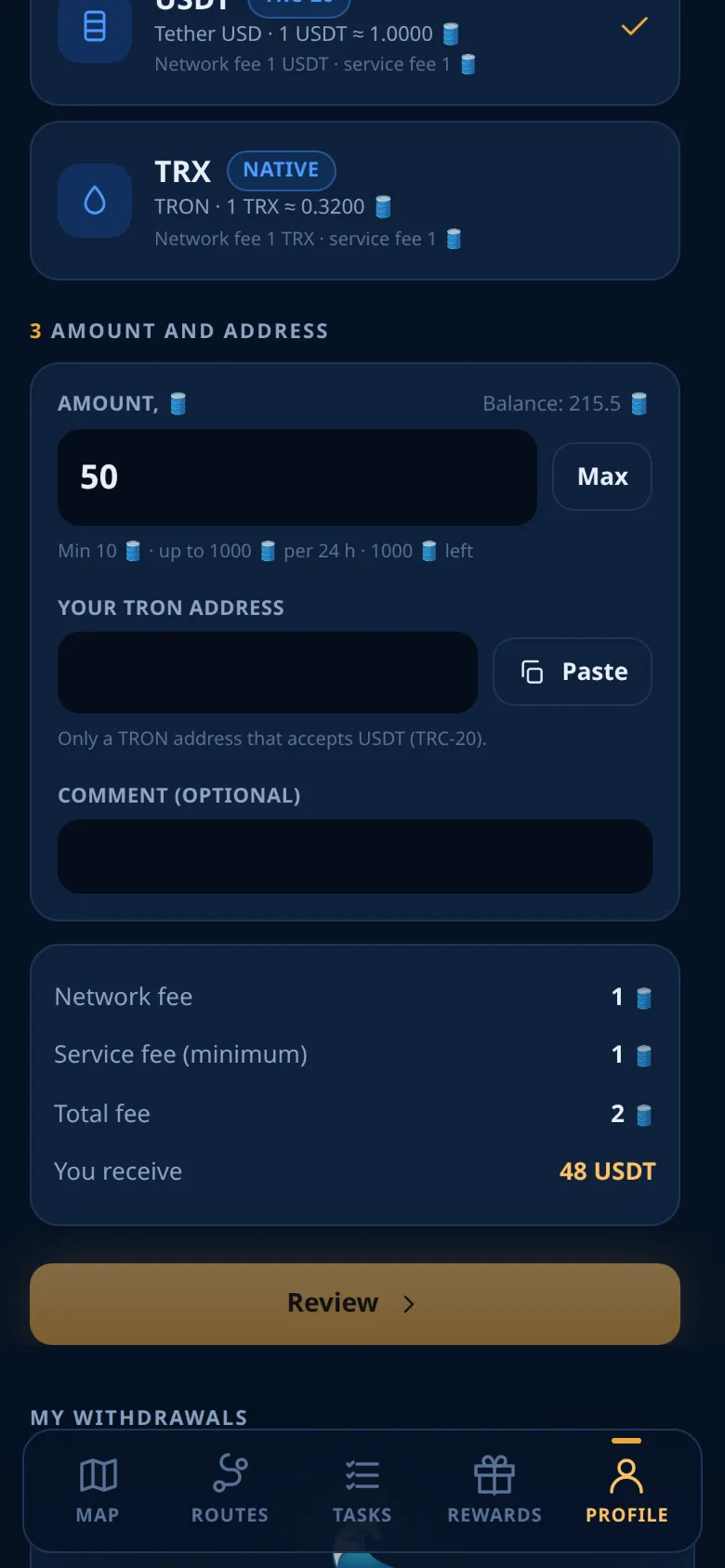
In the bot the steps are the same: currency, network and asset, amount, address, review, and the code if two-factor protection is on. The bot deletes the message with your code.
The table shows each network and asset, its fees, and whether it is open right now. The DOGE row is explained in Withdrawing DOGE.
USDC is not paid out.
The address
Caution
Check the address and the network. A transfer to a wrong address cannot be reversed. Use an address of your own wallet that accepts this asset on this network.
- Payouts carry no memo, tag or comment. Do not use an exchange deposit address that needs a memo.
- An address that belongs to Oil Voyage is refused, including the deposit address of any player.
- On TON, paste the address that starts with "UQ" or "EQ", in the form that uses "-" and "_". The same address written with "+" or "/" is refused.
- On Solana, paste the address of your wallet, not the address of a token account.
Withdrawing DOGE
DOGE is withdrawn here too. Choose BNB Smart Chain as the network and DOGE as the currency. The amount comes from your DOGE balance, so exchange wDOGE into DOGE first. DOGE is paid on BNB Smart Chain (BEP-20), in whole coins, to an address that starts with 0x.
When BNB Smart Chain is chosen, the page also shows the link Exchange wDOGE for DOGE here, which opens the wDOGE → DOGE screen.
DOGE has its own minimum, fees and limit: see wDOGE and DOGE. Your DOGE requests are listed under DOGE withdrawals.
Fees
A withdrawal has two fees. Both come out of the amount you enter, not on top of it.
- Network fee: the cost of the blockchain transaction, set for each network and asset. It can be zero.
- Service fee: 0% of the amount, but at least 1 🛢️. A network can have its own service fee.
What you receive = (amount − network fee − service fee), converted at the asset's price. 1 🛢️ = 1 USD. USDT is counted at 1 USD. Other coins use the market price. The amount of crypto is fixed when you make the request. It does not change while the request waits.
The frozen part of your balance
Not all of your balance can always be withdrawn. Two parts stay frozen for withdrawal, but you can still use them in the game:
- Recent deposits. Each deposit is frozen for some days from its credit, so that it works in voyages first. After that it can be withdrawn.
- The bonus balance. The welcome bonus of 1 🛢️ and every daily streak reward are a bonus balance. You can buy shares with it, but it can never be withdrawn: this sum stays frozen for good. What you earn with it in voyages can be withdrawn.
The card at the top of the withdrawal screen shows Available to withdraw, Frozen and Total, and when the next frozen deposit unlocks.
Limits
- At least 15 🛢️ per request, fees included, in steps of 1 🛢️ (a step of 1 🛢️ means whole numbers only).
- At most 500 🛢️ in any 48 hours. This is a rolling window, not a calendar day.
- Pending, approved, sent and completed requests count toward this window. Cancelled, rejected and failed ones do not.
- You can have several requests pending at once.
Review
When your request is accepted, the whole amount, fees included, leaves your balance at once and is held. History shows it as "Withdrawal".
Nothing is paid automatically. An operator reviews every request, then approves it, pays it, or rejects it. There is no fixed processing time.
| Status | What it means |
|---|---|
| Pending review | The amount is held and waits for an operator. You can cancel it. |
| Approved | An operator accepted it. The payout is being made, which can take some time. |
| Sent | The transaction is on its way. |
| Completed | Paid. |
| Rejected | An operator declined it and gave a reason. The whole amount is back on your balance. |
| Failed · refunded | The payout failed. The whole amount is back on your balance. You can request again. |
| Cancelled | You took it back. The whole amount is back on your balance. |
A returned amount shows in History as "Withdrawal refund". Once a request has a transaction, its row has a View transaction link to a block explorer.
The bot messages you when the status of a request changes. These messages do not depend on your notification settings: they are sent whenever the bot can write to you.
Cancelling
While a request is "Pending review", you can take it back:
- Open Withdraw in the Mini App and find the request under My withdrawals.
- Tap Cancel, then Yes, cancel it.
The whole amount returns to your balance at once. Cancelling also works on weekends. A request cannot be edited: to change the amount, the asset or the address, cancel it and make a new one. Once an operator has acted on a request, it can no longer be cancelled.
Two-factor codes
These rules apply while two-factor protection is on.
- A code works once. For two withdrawals in a row, wait for the next code (up to 30 seconds).
- A wrong code, or a code used a second time, counts as a wrong attempt. Five wrong attempts in a row lock two-factor protection for 15 minutes. During the lock every code is refused, even a right one or a recovery code.
- A recovery code can replace the app code. Each recovery code works once.
- If you lost both the app and your recovery codes, you cannot withdraw until an operator resets your protection. See Support.
Good to know
Note
There is no guaranteed income, and you can lose part or all of what you put in. Nothing here is financial advice. Withdrawals are offered at the operators' discretion, with limits, fees, reviews and waiting periods, and may be changed or paused. See the Terms.
Ready to sail?
Open Oil Voyage in Telegram and load your first tanker.