Security
Optional two-factor protection for withdrawals, recovery codes, lockouts, turning it off, and the recovery email with Google, step by step.
On this page
Your game account opens through Telegram, without a password. The Security screen adds two optional protections: a code from an authenticator app for every withdrawal, and a recovery email. This page explains both, step by step.
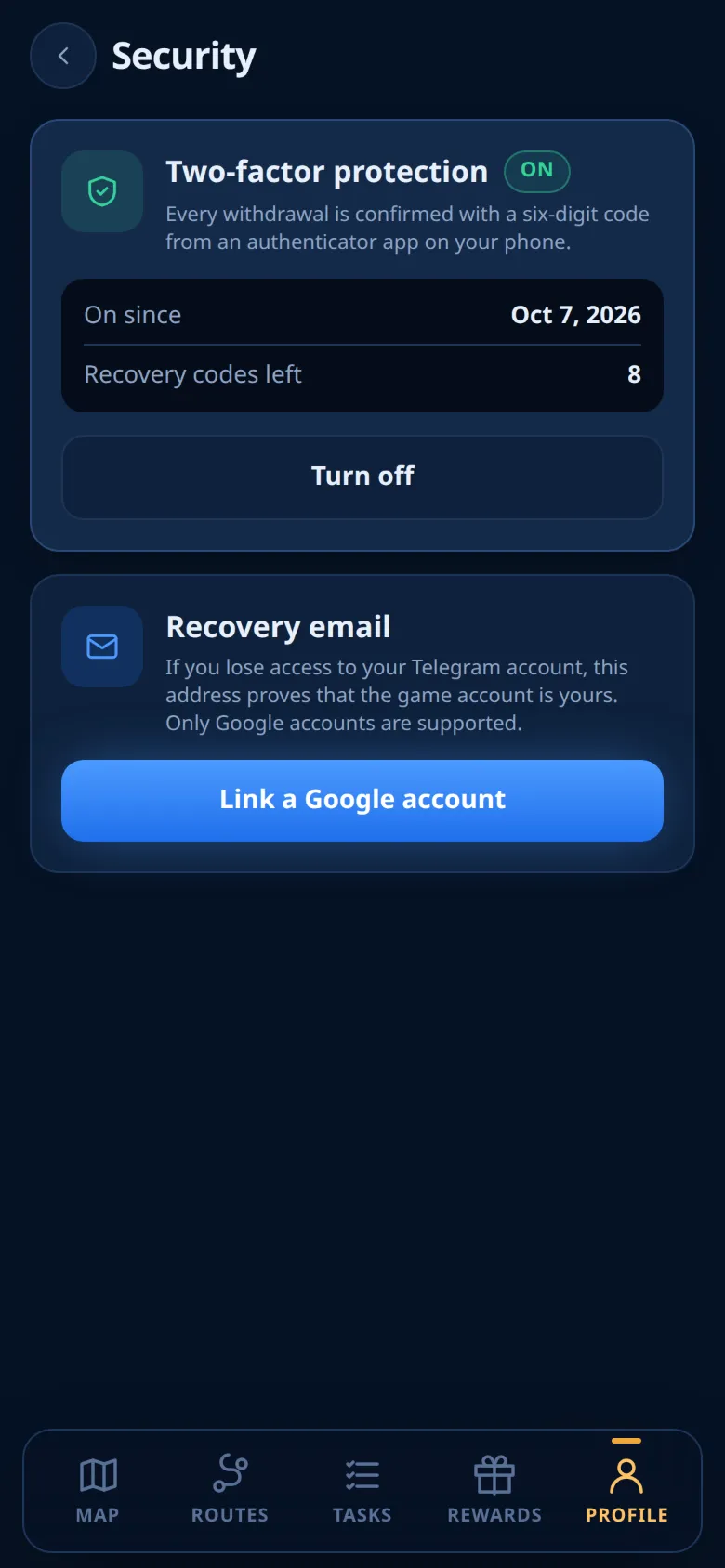
Open it from Profile → Security.
Two-factor protection
Two-factor protection uses a six-digit code from an authenticator app on your phone, such as Google Authenticator, Aegis or 1Password. The app shows a new code every 30 seconds, even offline.
It does not change how you sign in. It protects what leaves your account. While it is on, a code is needed:
- for every withdrawal of wBarrel or DOGE, in the Mini App and in the bot;
- to turn the protection off;
- to unlink the recovery email while the protection is on.
Tip
Two-factor protection is not required, but we recommend it. While it is off, withdrawals go without a code, and the withdrawal screen suggests turning it on. While it is on, nobody can withdraw without your phone, even with access to your Telegram account.
Turning it on
- On Security, tap Turn on.
- Add Oil Voyage to the app. In your authenticator app, add an account and scan the QR code. Or type the key by hand: it is shown in groups of four with a copy button. Tap Next.
- Enter the code. Type the six digits that the app shows for Oil Voyage. The check starts by itself after the sixth digit.
- Save your recovery codes. You see eight codes, only this once. Tap Copy all and keep them somewhere other than this phone.
- Tick I have saved these codes and tap Done. The screen confirms: Two-factor protection is on.
While the codes are on screen, the app will not let you leave until you tick the box.
If you leave before step 4, the protection stays off and the badge says Not finished. Tap Start again. This makes a new key: delete the old Oil Voyage entry from your authenticator app, because it will never work.
When the protection is on, the screen shows the date it was turned on and how many recovery codes are left.
Using a code
Each code works once. After a code was accepted, only a newer one works, and the same code typed again counts as a wrong code. For the next action, wait until the app shows a new code (up to 30 seconds).
Recovery codes
The eight recovery codes look like XXXXX-XXXXX-XXXXX-XXXXX. Capital letters, dashes and spaces do not matter.
- Each code works once, in place of a code from the app. Tap Use a recovery code where a code is asked.
- Nobody can show them to you again, not even the game team.
- To get a new set, turn the protection off and on again.
Wrong codes and lockouts
Five wrong codes in a row lock the protection for 15 minutes. During a lockout every code is refused, even a right one or a recovery code, and you see a countdown. Before that, each wrong code shows how many attempts are left.
The count is shared by every place that asks for a code: Security, withdrawals in the app and in the bot, and the email. A right code or a recovery code resets it. A code used a second time counts as a wrong one.
Turning it off
- Tap Turn off.
- Read the warning: withdrawals will then go without a code.
- Enter a code from the app, or tap Use a recovery code and enter a recovery code.
The whole setup is deleted: the old entry in your authenticator app and the remaining recovery codes stop working. You cannot turn it off during a lockout.
If you lose your phone
- Use a recovery code, then turn the protection off and on again with your new phone.
- If you lost both the app and all recovery codes, you cannot withdraw or turn the protection off yourself. Only the game team can reset it. After a reset you set it up again. See Support.
The recovery email helps if you lose access to your Telegram account. A linked Google address proves that the game account is yours. Only Google accounts are supported. If your Security screen has no Recovery email block, linking is not available right now.
Linking a Google account
- Tap Link a Google account. Google opens in your browser.
- Choose your Google account. The game asks only for your email address.
- The browser shows the result. Come back to Telegram: the Security screen updates by itself and shows the address.
The link works once and for 10 minutes. After that, start again.
One email belongs to one game account. Google must have verified the address. To use another address, unlink the current one first.
Unlinking
- Tap Unlink.
- Read the warning: without a linked email, the account cannot be recovered if you lose access to Telegram.
- If two-factor protection is on, enter a code from the app or a recovery code.
If you lose Telegram
The game team can move your game account to a new Telegram account. The linked email is the proof. Your balance, shares, friends, invite code and security settings stay with the game account.
Warning
Do not open the game or the bot from the new Telegram account before the move. That creates a new, empty game account, and the move cannot be done until it is sorted out.
How to reach the game team: see Support.
Ready to sail?
Open Oil Voyage in Telegram and load your first tanker.